
eBay Digital Delivery
View Setup Instructions
E-junkie can deliver digital goods sold on eBay
If you are selling on eBay, E-junkie can help with automatic delivery of digital products such as ebooks, documents, software, phone cards, serial/license/registration/PIN codes, and more!
- We can automatically prodivde unique and expiring download links, code keys, and/or other information via email.
- When we are informed of a payment we will send the product within your E-junkie account that matches the Title of your eBay listing, so it is important that the Title of your listing and the name of your product are an exact match.
- E-junkie is completely compatible with eBay collective payments, even if the payment includes any items which are not added in your E-junkie Dashboard (we'll just ignore those when we process the order).
- We will query your eBay account for new transactions every 5 minutes, so it may take that long for us to email a link/code to the buyer after their payment is completed.
How to use E-junkie for eBay digital delivery
- Integrate your E-junkie and eBay accounts—this step is only required ONCE:
- If you have multiple eBay accounts, sign out of eBay first, so you can sign into the eBay account you want integrated when you get to that step;
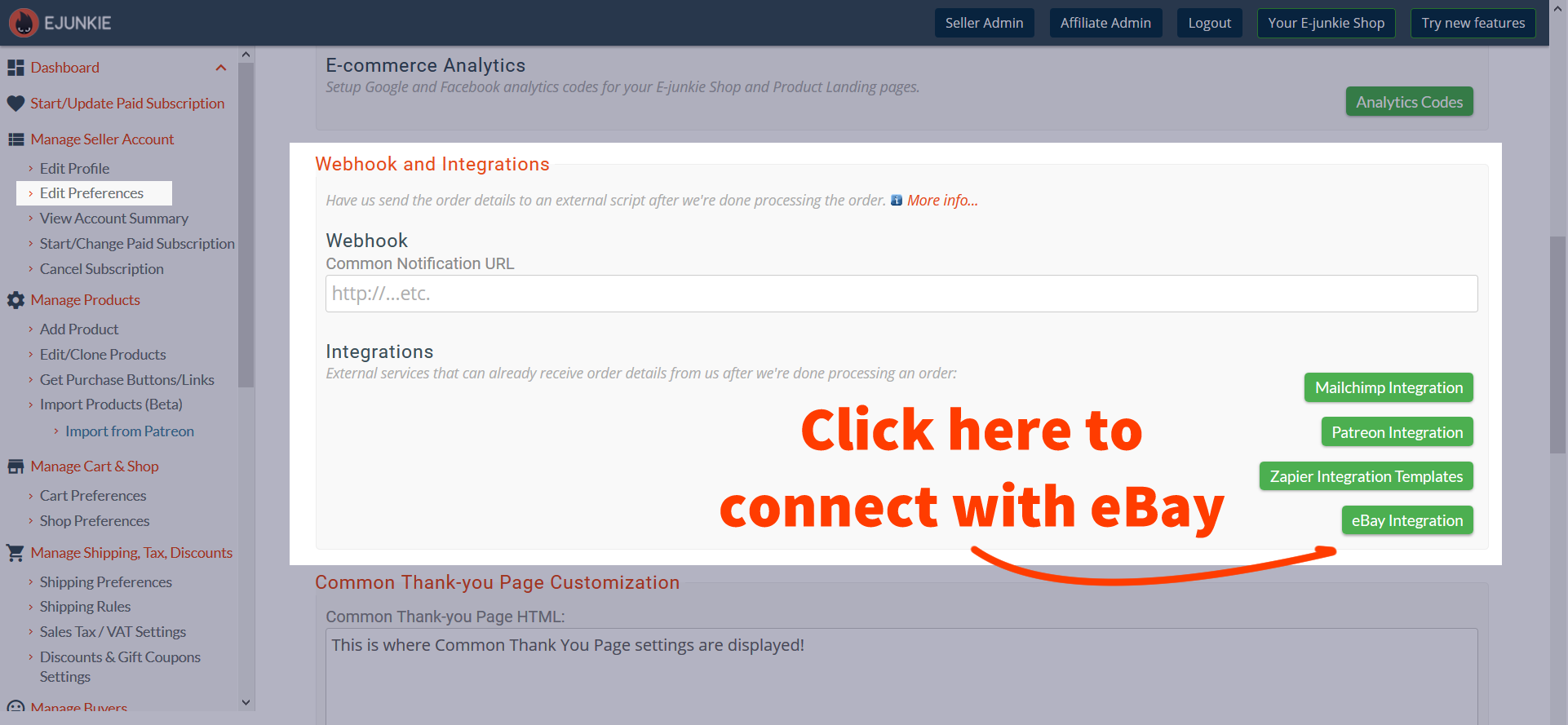
- In your E-junkie Dashboard, go to Manage Seller Account > Edit Preferences;
- Scroll down to the Webhook & Integrations section and click the eBay Integration button;
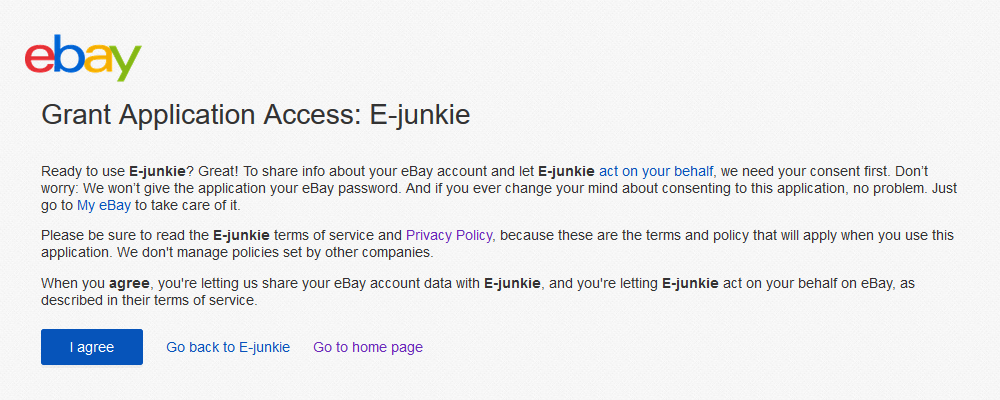
- This will take you to Sign into your eBay account;
- Click the I agree button on the agreement page you're taken to;
- This will redirect you back to your E-junkie Dashboard.
- Create your eBay item listing
- When you enter your item listing Title, copy and save it somewhere as you will need to paste that into your E-junkie product settings later—copy it directly from the text-entry box where you type it, not from the live listing page later, as that will not be accurate if you have any double spaces between characters.
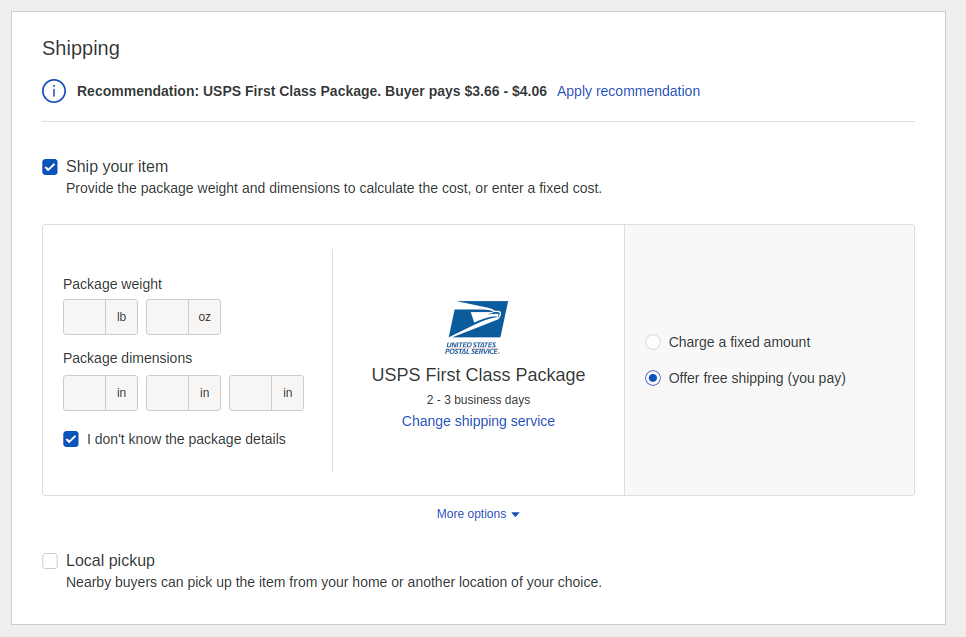
- Make sure you keep Shipping enabled for your listing:
- You can Change the shipping details, but keep Ship your item ticked to have us receive the buyer's email address;
- If you won't be shipping a tangible product to the buyer, select Free Shipping and tick I don't know the package details;
- Avoid using the Local Pickup option, as that would not send us the buyers' email address.
- If you will be shipping/mailing a physical copy, you could use E-junkie to provide an instant digital download version for the buyer to enjoy while they wait for their physical copy to arrive;
- If your item is a tangible product, you can use E-junkie to provide an accompanying file, such as a product manual, firmware file/utility, device driver, etc.
- Bear in mind current eBay policy on selling digitally delivered goods—e.g.:
- When you sell digitally delivered goods on eBay, you must include a statement in your listing and product that says you legally own the content or are authorized to sell it;
- You can't sell digitally delivered goods that could damage a buyer's devices, be used maliciously, or to invade privacy;
- In addition, you can't sell any digital content that you aren't authorized to sell;
- You'll find more details on specific digitally delivered goods that aren't allowed on eBay in their full policy for digitally delivered goods, here.
- Add your product in E-junkie Admin:
You need to do this step only once for each product you are selling on eBay. You will not need to repeat this when you re-list your product on eBay, as long as you retain the same listing Title on eBay.- In your E-junkie Dashboard, click Add Product;
- Copy the item listing Title you'd entered in eBay and paste that as the product's Item Name in E-junkie;
- You can enter any Price you want, as that is not considered for eBay sales;
- Currency should be the same as the currency you are accepting in your eBay item listing;
- Configure other Digital Delivery options you need for the product;
- Click Submit to save settings.
NOTICE: Recently the eBay API we integrate with has stopped reporting many sales purchased after 9pm MST/PDT (GMT-7) until midnight later that night. As such, we are unable to process affected orders until eBay makes them discoverable to us at midnight, as we have no other way of knowing the sale occurred until then. We have reported the issue to eBay but at present do not know if this is just a technical glitch they need to clear up at their end or an intentional policy decision on their part.
FAQs
Can I sell my products on eBay? Do I need E-junkie's buttons for that? Why should I use E-junkie to sell my products on eBay? Does E-junkie work with eBay collective payments? Do I have to re-list my product on E-junkie when I re-list it on eBay? Does the price of my product in my eBay listing related to the price I enter for it in E-junkie admin? eBay in my country does not offer eBay digital delivery; can I still sell digital content on eBay using E-junkie? Does my eBay listing has to be Buy It Now or fixed price or anything? Can I sell my product on eBay and other sites at the same time? Can I sell on eBay internationally?
Troubleshooting